NAS In-Flight Encryption
10/31/2023

Introduction
Information Technology deals with transmitting and storing a lot of data. Some of this information may be classified as PHI, Personal Health Information, and PII, Personally Identifiable Information, which is regulated by laws enacted by the US (HIPAA & SOXA) and foreign governments (GDPR). To protect personal information from being corrupted or leaked to others that might use the information to negatively impact an individual there are requirements for protection of integrity and privacy. To meet privacy requirements either encryption and isolation or both are specified by standard documented or referenced by government regulations.
Network Attached Storage is typically accessed either as file based storage through NFS exports or SMB CIFS shares or as block storage through iSCSI. Since NAS storage traverse enterprise networks it is recommended that connections to NAS be encrypted especially in the case where HIPAA or Sensitive PII may be accessed and transmitted across the network. This article covers how to enable and configure encryption in-flight for NAS Strorage.
Isilon NFS Encryption
h17769_integrating_onefs_with_kerberos_wp.pdf (delltechnologies.com)
NFS Encryption became available with NFS version 4 utilizing Kerberos and its asymmetric encryption key algorithms. Kerberos is a network authentication provider that negotiates encryption tickets for securing a connection.
Isilon Server Side OneFS Kerberos Configuration
OneFS supports Microsoft Kerberos and MIT Kerberos authentication providers on a cluster. If you configure an Active Directory provider, support for Microsoft Kerberos authentication is provided automatically. MIT Kerberos works independently of Active Directory.
- OneFS NFS exports with Kerberos security type enabled. Under Protocols -> Unix Sharing when creating a share enable the Kereros security types.

- Verify that the ADs provider is configured on the Isilon either from the web gui under Access -> Authentication Providers

- Or verify from the command line
isi auth ads list
isi auth ads view {Domain}
isi auth ads spn check {Domain}
isi auth ads trust list {Domain} - If it is not configured it will need to be configured to use the Windows Domain controllers as a Kerberos key server.
- Create Active Directory authentication provider using the isi CLI command.
isi auth ads create –name=example.com –user=administrator -groupnet=groupnet0 - Add the Active Directory authentication provider to access zone.
isi zone zones modify –name=zone01 –add-auth-providers=lsaactivedirectory-provider:EXAMPLE.COM - Configure SmartConnect on OneFS cluster and DNS server.
SmartConnect and Reverse DNS | PowerScale: Network Design Considerations | Dell Technologies Info Hub
DNS delegation best practices | PowerScale: Network Design Considerations | Dell Technologies Info Hub
SmartConnect DNS, subnet, and pool design | PowerScale: Network Design Considerations | Dell Technologies Info Hub - Check whether SmartConnect zone name SPNs are created on Active Directory by using the isi CLI command as below.
# isi auth ads spn check –provider-name=EXAMPLE.COM Possible missing SPNs: HOST/sc01 HOST/sc01.example.com nfs/sc01.example.com
For SMB Kerberos, HOST/SmartConnect_zone_name SPNs are required. From the output above, create the following SPNs using the isi CLI command.
# isi auth ads spn create –provider-name=EXAMPLE.COM –user=administrator –spn=HOST/sc01.example.com # isi auth ads spn create –provider-name=EXAMPLE.COM –user=administrator –spn=HOST/sc01
Alternatly, fix all missing SPNs with the following command quickly.
# isi auth ads spn fix –provider-name=EXAMPLE.COM –user=administrator - If you have access rights to log on your Active Directory domain controller server, you can find the associated SPNs under the advanced feature view in the attribute editor tab as shown in Figure 2.
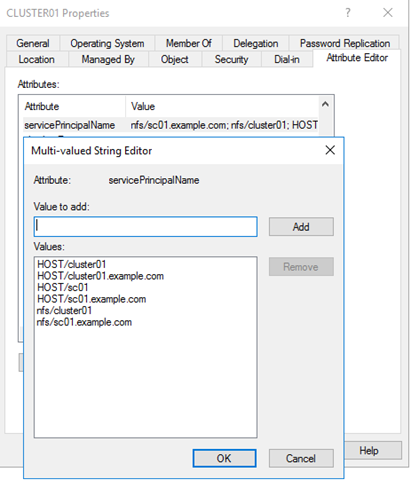
- After making the above configuration on cluster, to leverage SMB Kerberos authentication, clients in AD domain need to access SMB share using SmartConnect FQDN along with an AD user account. If the current Windows login user is a domain user who has access right to the SMB share. The Windows client will transparently authenticate using its logon credentials and will prompt for credentials if the Windows credentials failed. For NetBIOS Name Service (NBNS) enabled Windows environment, SMB Kerberos authentication may still be effective even though a Windows client is not a domain member.
- Create Active Directory authentication provider using the isi CLI command.
- Note: If RFC2307 is enabled then file systems mounted with NFSv4 will not allow root to access the NFS file systems for those systems unless a rule is created to map the host in the domain to root level access. This needs to be done for each host from the isilon command line
isi zone zones modify –zone=System –add-user-mapping-rules=”{Domain}\{Host}$ => root”
Linux NFS Client Configuration for Kerberos Encryption
If your linux systems is already attached to the AD domain then klist will show this connection. This can be verified by using the command in steps 8 and 9 below. What usually may not be configured is the domain in the krb5.conf and idmapd.conf file covered in step 9 to 10 below.
- The time must be synchronized across NFS clients, OneFS cluster nodes, and Kerberos server. It is recommended to use a NTP server in a Kerberos environment.
- Kerberos relies on being able to resolve host names. Thus, it requires a DNS for host resolution.
- Use consistent UID/GID information for users from NFS clients and OneFS. It is recommended to use a central identity store, such as LDAP server for this purpose.
- There are different methods to integrate Linux systems with AD environment, for example, when using native LDAP and Kerberos PAM and NSS modules, Samba Winbind, or SSSD. In this sample, we use SSSD as the component to Kerberize CentOS 7 with AD. In the following steps, we use CentOS 7.5 and Windows 2016 Active Directory.
- Install the System Security Services Daemon (SSSD), realmd, and kerberos client
yum install sssd realmd samba-common-tools krb5-workstation - Join the client to a domain using realm join command. The realmd system provides a clear and simple method to discover and join domains to achieve AD integration. It configures underlying Linux system services automatically to connect to the domain, such as some of key configurations files: /etc/sssd/sssd.conf, /etc/nsswitch, /etc/pam.d/system-auth, /etc/krb5.conf, /etc/krb5.keytab.
- By default, SSSD maps Windows SIDs to UIDs/GIDs in local system. The mapping information is valid on local only. Thus, use consistent domain users UIDs/GIDs across OneFS cluster and all NFS clients. It is recommended to use realm utility to disable ID mapping in SSSD with –automatic-id-mapping=no option. This option configures SSSD to use POSIX attributes (RFC2307) defined in AD. If a client already joins a domain without disable ID mapping, an alternative method is to add ldap_id_mapping=False setting in SSSD configuration file /etc/sssd/sssd.conf. For the user id use either the administrator or id with appropriate authority for attaching to the domain.
# realm join tsh.thomson.com -U administrator –automatic-id-mapping=no - Use klist to verify the kerberos connection to the AD domain controllers and klist -k to verify that the client’s SPNs exist in keytab.
# klist
# klist –k - Confirm the client can retrieve RFC2307 attributes for users from AD using klist, the id command and check the /etc/krb5.conf and /etc/idmapd.conf.
- To make a client works correctly in an NFS environment, ensure these configurations are applied.
- For NFSv4 only, the NFSv4 user representation is based on NFSv4 domain name in the format of user@domainname for name resolution, thus we need to modify the configuration file /etc/idmapd.conf on the client to contain following settings
- Add NFSv4 domain setting:
Domain=tsh.thomson.com - Add SSSD as the method of NFSv4 user ID <=> Name mapper: Method=nsswitch,sss
- Start rpcidmapd service using systemctl start rpcidmapd
- Add NFSv4 domain setting:
- To use NFS Kerberos authentication, the kernel needs to load the rpcsec_gss_krb5 and auth_rpcgss modules. To configure the modules, using these commands:
# modprobe auth_rpcgss
# modprobe rpcsec_gss_krb5
# depmod –a
- For NFSv4 only, the NFSv4 user representation is based on NFSv4 domain name in the format of user@domainname for name resolution, thus we need to modify the configuration file /etc/idmapd.conf on the client to contain following settings
- Log in to the client with an AD user. Mount the NFS export and access the directory to your data.
mount –t nfs -o nfsvers=4,proto-tcp,sec-krb5p,hard,acl {isilon.domain.com}:/path/to/export /export/mount/point
Isilon SMB CIFS Encryption
Samba CIFS encryption is available starting with SMB version 3.0 and later. SMB Encryption uses the Advanced Encryption Standard (AES)-GCM and CCM algorithm to encrypt and decrypt the data. AES-CMAC and AES-GMAC also provide data integrity validation (signing) for encrypted file shares, regardless of the SMB signing settings. Windows Server 2022 and Windows 11 introduce AES-128-GMAC for SMB 3.1.1 signing. Windows automatically negotiates this better-performing cipher method when connecting to another computer that supports it. Windows still supports AES-128-CMAC.
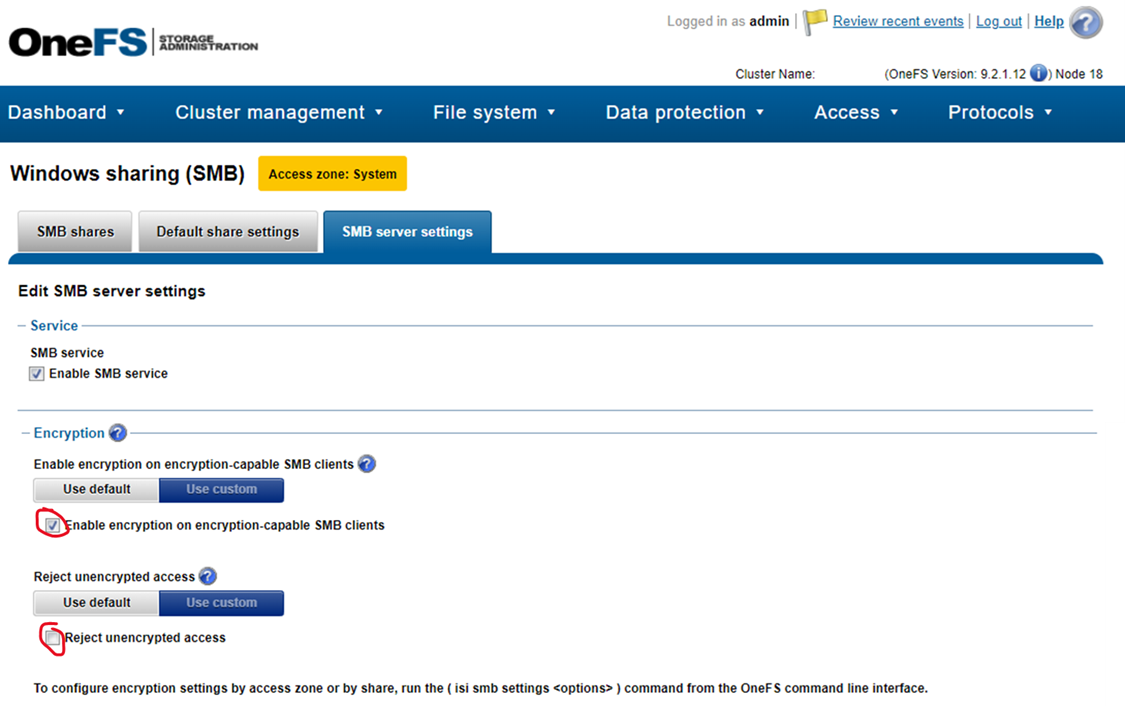
To enable SMB encryption login to the management webgui for the Isilon and select -> Protocolas -> Windows Sharing (SMB) and then the SMB Server Settings tab. Enabling encryption will make the encryption protocols available and newer versions of windows and windows server will automatically negotiate encryption. Setting the reject unencrypted access will force all versions of Windows supporting smb 3.x to enact encryption in flight.


 DCA Wired