Often you will receive data about machine addresses or world wide names from one source without any colons and then another source will have these addresses formatted with colons. You can either remove the colons from one but if you have to provide input from your data in a colon delimited format for another application you will have to add the colons after every two characters. The easiest way to do this is with the following formula:
This assumes that your data is in cell A1, you will need to adjust accordingly to your worksheets layout. The formula uses the sequence function to create an array of numbers for every other character according to the length of the data in the cell with a step of two. This will form the starting number of every two characters used by the mid function in array mode. From that number it will then extract the value at that point for the length specified.
The previous two posts covered how to extract numbers and then letters from a cell. This post brings it altogether into a function that can convert a number of bytes with a unit to gigabytes. In the past I have done this with VBA macro functions such as the one inserted below. The issue with using VBA macros is it can limit the portability of a spreadsheet. Since hackers started using VBA macros to write malware and spyware many organizations have put policies in place that block the execution of VBA macros or require macros signatures registering the functions to the organization. These limit the ability of a spreadsheet to be distributed and used without significant steps to get approvals and registrations within a company’s policies.
VBA GetNumber Function (Select Arrow to Open Below)
Function GetNumber(rWhere As Variant, Optional Accept_Decimals As Boolean, Optional Accept_Negative As Boolean) As String

Dim CharPostion As Integer, i As Integer, StringLength As Integer
Dim sText As String, mchNeg As String, mchDec As String
Dim ThisNum As String
Dim vChar, vChar2
mchNeg = vbNullString
mchDec = vbNullString

Select Case TypeName(rWhere)
    Case Is = "Range"
        ' Get the text from the supplied range
        sText = Trim(rWhere.Text)
    Case Else
        sText = Trim(rWhere)
End Select

If Accept_Decimals = True Then
    mchDec = "."
End If
If Accept_Negative = True Then
    mchNeg = "-"
End If

StringLength = Len(sText)
For CharPostion = StringLength To 1 Step -1
    vChar = Mid(sText, CharPostion, 1)
        If IsNumeric(vChar) Or vChar = mchNeg Or vChar = mchDec Then
                i = i + 1
                ThisNum = Mid(sText, CharPostion, 1) & ThisNum
            If IsNumeric(ThisNum) Then
                If CDbl(ThisNum) < 0 Then Exit For
            Else
                ThisNum = Replace(ThisNum, Left(ThisNum, 1), "", , 1)
            End If
        End If
    If i = 1 And ThisNum <> vbNullString Then ThisNum = CDbl(Mid(ThisNum, 1, 1))
Next CharPostion
'GetNumber = CDbl(ThisNum)
GetNumber = ThisNum
End Function
VBA ByteToGB Function (Select Arrow to Open Below)
Function BytesToGb(Where As Range) As Double

Dim NumMB As Double

' Get the text from the supplied range
strWhere = Trim(Where.Text)

'Extract the number and unit from the text
'NumPart = CDbl(Mid(strWhere, 1, (InStr(1, strWhere, "b", vbTextCompare) - 2)))
NumPart = GetNumber(Where, True, True)
NumUnit = LCase(Trim(Replace(Where, NumPart, "")))
'Mid(strWhere, InStr(1, strWhere, "b", vbTextCompare) - 1, Len(strWhere) - (InStr(1, strWhere, "b", vbTextCompare) - 2))

'Use unit to convert the number part to MB value
Select Case NumUnit
    Case "kb", "k"
        NumMB = NumPart / 1024 ^ 2
    Case "mb", "m"
        NumMB = NumPart / 1024
    Case "gb", "g"
        NumMB = NumPart
    Case "tb", "t"
        NumMB = NumPart * 1024
    Case Else
        NumMB = NumPart / 1024
End Select

' Return the MBs
BytesToGb = CDbl(NumMB)
End Function
Rather than use a VBA macro function like the one above since with newer versions of Excel we now have more available array functions this can be done using the formulae discussed in the previous two posts combined into a named lambda function.
For the explanation of the formulas on either side of the /10^ please see the pervious two posts. So let’s make it into a function using the Name Manager under formulas with the Lambda function. You may be familiar with creating named ranges. Under the Formula menu item in Excel you can select a range of cells and choose define name so that you can refer to it else where. But what you can also do is create a name that behaves like a function. Open Name Manager and add a name BytesToGB and paste into the reference field the formula above. Then you can reuse this formula against any reference just by using =BytesToGB(Ref).
In this function we divide the number extracted from the cell by the number created when we match the letters extracted to the array {“P”,”T”,”G”,”M”,”K”} subtracting 3. So for Petabytes 1 minus 3 would equal negative 2 time 3 would equal negative 6. Thus dividing a number by 10 raised to the power of -6 would add six zeros to it arriving at the number of gigabytes. Similarly for Terabytes 2 minus 3 would equal -1 multipled by 3 would be -3 and would result in 3 zeros or decimal places being added to the number converting it to gigabytes.
In the previous post I covered how to extract numbers, including decimal numbers, from a string. The flip side of that is to extract the letters from the same string. The formula to do this are very similar to the extracting numbers formula but with the reverse sense. We don’t want numbers but non-numbers and we don’t want periods or decimals. So here is the formula to do this below and after it I will describe how it works.
I was looking for a way to extract numbers from a string in and excel cell. Years ago, I created a VBA module with regular expression functions which could do this kind of work. However, using VBA tends to decrease the portability of an excel spreadsheets depending upon the policies that might be in place. So I have been trying to use standard functions and formulas to improve my spreadsheet portability. I was searching the internet for a solution to this problem and indeed I found several examples of formulas which extracted numbers but what I eventually found is they left the decimals behind.
After more searching, I concluded that I was going to have to figure it out and write my own formula. I thought I should be able to use array-based formulas to solve the problem and a little while later I came up with this.
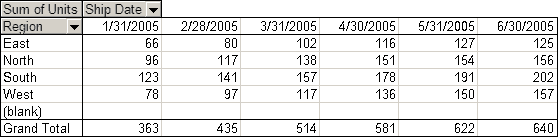
Excel spreadsheets are used at almost every level of business. As such spreadsheets are created by people with different goals and different levels of familiarity. What many don’t realize is that excel is primarily a data processing and information storage tool. Excel is much like a database and is most effective when data is stored as one would store information in a database. The problem is that data in a database isn’t necessarily that presentable. So many people input information into excel and attempt to format it for presentation. Many people create groups and merge cells or insert multiple entries into a single cell and then apply special formatting. The down side is when someone wants to use the graphing and report building features of excel the combined or grouped data isn’t accessible because it is either missing from cells due to cell merging or each entry isn’t accessible on its own because it has been entered into a single cell. The best method is to treat the data as a database and ensure that each cell in a column has data in it relative to the cells in the row so that a complete record is available. Then use the grouping and pivot table features to create reports that are presentable and much more functional because the data can be grouped and categorized in two dimensions.


 DCA Wired